
Blog
Mesh Nest blog
News, notes, and updates from the studio.
Latest posts
Browse articles and announcements.

DIY: Monitor Your Water Tank Level in Home Assistant with ESPHome
Put a cheap ESP32 and an ultrasonic sensor on your backup water tank, flash it with ESPHome, and get the tank level in Home Assistant plus a phone alert before it runs dry during a water outage.

DIY: Watch Your Inverter Battery in Home Assistant with SolarAssistant
Bring your hybrid inverter and battery into Home Assistant with SolarAssistant's official integration, light up the Energy dashboard, and get a phone alert before the battery runs flat during load shedding.

DIY: Schedule and Shed Your Electric Geyser with Home Assistant
Keep a big SA electric geyser off overnight and during peaks with a Home Assistant Schedule helper—then optionally shed it when your load-shedding area sensor flips on.

DIY Load-Shedding Schedule in Home Assistant with EskomSePush
Pull your area’s EskomSePush schedule into Home Assistant with WernerHP’s Load Shedding integration—then trigger 15-minute warnings and start/end automations without burning the free API quota.

DIY Zigbee2MQTT USB Coordinator Setup for Home Assistant
Set up a USB Zigbee coordinator with Zigbee2MQTT and Mosquitto so your sensors and switches stay local—useful when Wi‑Fi and cloud apps wobble during load shedding.

DIY UPS Monitoring with NUT and Home Assistant for Load Shedding
Wire a USB UPS into Home Assistant with Network UPS Tools (NUT) so you get real on-battery alerts, battery-charge automations, and graceful load shedding—not just a schedule guess.

DIY Load-Shedding Ready Smart Plugs with Home Assistant
Build a practical, local-first smart-plug setup that sheds non-essentials before and during outages—using Home Assistant, schedule sensors, and optional UPS monitoring.

DIY Home Automation: How to Build a Smarter Home Without Breaking the Bank
Want a smarter home without expensive proprietary systems? This practical guide walks you through starting a DIY home automation setup using open-source tools, affordable hardware, and a clear step-by-step approach.
DIY: Watch Your Inverter Battery in Home Assistant with SolarAssistant
DIY: Watch Your Inverter Battery in Home Assistant with SolarAssistant
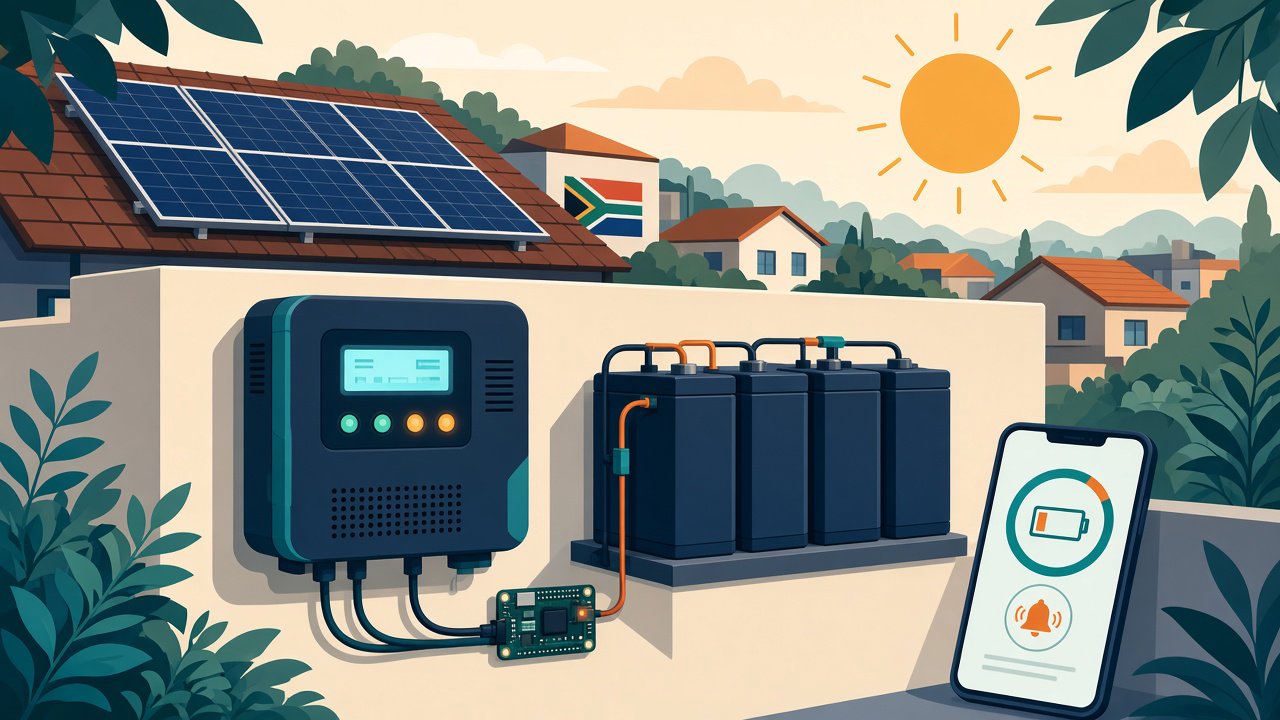
Bring your hybrid inverter and battery into Home Assistant with SolarAssistant's official integration, light up the Energy dashboard, and get a phone alert before the battery runs flat during load shedding.
If you run a hybrid inverter through load shedding (an Axpert/Voltronic, Deye, SunSynk, Growatt and friends), the most useful number in your house is your battery's state of charge. Most inverters only show it on a small LCD or a vendor app. Getting it into Home Assistant means you can see it next to everything else, feed the Energy dashboard, and get a phone alert before the battery runs flat in the middle of a long stage.
This DIY uses SolarAssistant, a small monitoring unit (typically a Raspberry Pi-class device) that talks to your inverter and battery. It has an official Home Assistant integration that needs no MQTT broker. It builds on the earlier MeshNest posts on load-shedding schedules and smart plugs: once your inverter is in Home Assistant, those automations can react to the real battery level instead of guessing.
What you need
- A supported inverter and battery. Check SolarAssistant's supported list before buying anything: https://solar-assistant.io/help/inverters/voltronic (Voltronic/Axpert family) and the full Inverters and Battery sections of their help pages.
- A SolarAssistant unit on your local network, connected to the inverter per their getting-started guide. Hardware and licences: https://solar-assistant.io/shop
- Home Assistant running on a separate always-on device (SolarAssistant themselves recommend giving Home Assistant its own Raspberry Pi).
- The Home Assistant Companion app on your phone, for push notifications.
Safety first
Monitoring is read-only and low risk. The cabling between SolarAssistant and the inverter is a low-voltage data connection, but it sits next to DC battery and AC wiring. Do not open the inverter or the DB board, and leave any changes to the inverter installation itself to the installer who signed it off.
Step 1: Update SolarAssistant
The official integration needs your SolarAssistant unit on software version 2026-06-14 or later, and the Energy dashboard sensors need 2026-07-02 or later. Update first using SolarAssistant's software update guide.
Step 2: Install the SolarAssistant integration in Home Assistant
SolarAssistant's own steps (https://solar-assistant.io/help/home-assistant/integration) go like this:
- In Home Assistant, open Settings, select Apps, then Install app.
- Open the menu in the top-right corner, select Repositories, click Add, and enter https://github.com/Solar-Assistant/ha_addons
- Search for SolarAssistant, click Install, then Start. Home Assistant restarts automatically.
- Go to Settings, then Devices & services, click Add integration and choose SolarAssistant.
- Pick Local password, enter the unit's host (its IP or a name like solar-assistant.local) and its web password, then name the device and click Finish.
You should now have a SolarAssistant device with live entities. By default it enables a curated set of the most useful metrics; if one you want is missing, open the integration's configure (gear) icon and use Add metric.
Prefer MQTT, or already run a broker? SolarAssistant also supports MQTT with automatic discovery (https://solar-assistant.io/help/home-assistant/setup). The official integration is their recommended route for most people.
Step 3: Turn on the Energy dashboard
The integration exposes grid in/out, battery in/out, PV and load as kWh sensors. Open the Energy dashboard (or Settings, Dashboards, Energy) and in the wizard pick the grid consumption and export sensors, the solar PV sensor, and the battery in and out sensors. You can skip gas and individual devices. Guide: https://solar-assistant.io/help/home-assistant/energy
One thing that trips people up: SolarAssistant's kWh totals are period-to-date and reset on a schedule (weekly by default). Home Assistant handles the reset, so your history still looks continuous.
Step 4: Get a low-battery alert on your phone
This is the bit that earns its keep during load shedding. Find your battery state-of-charge sensor under the SolarAssistant device and note its exact entity ID; the names below are placeholders. Then create an automation with a numeric state trigger (https://www.home-assistant.io/docs/automation/trigger/) and a Companion app notification (https://companion.home-assistant.io/docs/notifications/notifications-basic/). In YAML it looks like this:
alias: Inverter battery low
triggers:
- trigger: numeric_state
entity_id: sensor.your_battery_state_of_charge
below: 30
for: "00:02:00"
actions:
- action: notify.mobile_app_your_phone
data:
title: "Battery at {{ states('sensor.your_battery_state_of_charge') }}%"
message: "Switch off heavy loads until the grid is back."
- Pick your threshold from your battery's own guidance, not ours. Lithium and lead-acid banks have very different safe depths of discharge.
- The two-minute "for" stops a brief dip from a kettle or microwave spamming you.
- Your notify action name comes from your phone's name in the Companion app; Home Assistant shows it when you add the action in the UI.
Step 5: Let other automations use the real battery level
Once state of charge is a normal sensor, you can combine it with things you may already have:
- Add a condition to your smart-plug load-shedding automation so non-essential plugs only turn off when the battery is actually below, say, 50%.
- Hold the geyser schedule from the previous MeshNest post off while the battery is low and the grid is down.
- Pair it with your EskomSePush or Load Shedding sensor so you get one message like "Stage 4 in 30 minutes, battery 45%".
Troubleshooting
- No SolarAssistant entities? Check the unit's version first, then that Home Assistant can reach its IP on your LAN.
- Using MQTT and nothing shows after 10 minutes? SolarAssistant suggests using "Listen to a topic" in the MQTT integration to confirm messages are arriving.
- Weird drops in the Energy dashboard? Remember the scheduled reset of the kWh totals described above.
Sources
- SolarAssistant official Home Assistant integration: https://solar-assistant.io/help/home-assistant/integration
- SolarAssistant MQTT setup: https://solar-assistant.io/help/home-assistant/setup
- SolarAssistant Energy dashboard guide: https://solar-assistant.io/help/home-assistant/energy
- SolarAssistant add-on repository: https://github.com/Solar-Assistant/ha_addons
- Home Assistant automation triggers: https://www.home-assistant.io/docs/automation/trigger/
- Home Assistant Companion app notifications: https://companion.home-assistant.io/docs/notifications/notifications-basic/