
Blog
Mesh Nest blog
News, notes, and updates from the studio.
Latest posts
Browse articles and announcements.

DIY: Run Your Pool Pump and Pool Light on a Smart Schedule with Home Assistant (Shelly or Sonoff)
Put your pool pump on a smart relay, either a Shelly or a two-channel Sonoff Dual R3 that also handles the pool light, give it a weekly schedule in Home Assistant, and run it in the sunniest hours so it uses your solar instead of the grid, with power monitoring and an alert if it stops.

DIY: Monitor Your Water Tank Level in Home Assistant with ESPHome
Put a cheap ESP32 and an ultrasonic sensor on your backup water tank, flash it with ESPHome, and get the tank level in Home Assistant plus a phone alert before it runs dry during a water outage.

DIY: Watch Your Inverter Battery in Home Assistant with SolarAssistant
Bring your hybrid inverter and battery into Home Assistant with SolarAssistant's official integration, light up the Energy dashboard, and get a phone alert before the battery runs flat during load shedding.

DIY: Schedule and Shed Your Electric Geyser with Home Assistant
Keep a big SA electric geyser off overnight and during peaks with a Home Assistant Schedule helper—then optionally shed it when your load-shedding area sensor flips on.

DIY Load-Shedding Schedule in Home Assistant with EskomSePush
Pull your area’s EskomSePush schedule into Home Assistant with WernerHP’s Load Shedding integration—then trigger 15-minute warnings and start/end automations without burning the free API quota.

DIY Zigbee2MQTT USB Coordinator Setup for Home Assistant
Set up a USB Zigbee coordinator with Zigbee2MQTT and Mosquitto so your sensors and switches stay local—useful when Wi‑Fi and cloud apps wobble during load shedding.

DIY UPS Monitoring with NUT and Home Assistant for Load Shedding
Wire a USB UPS into Home Assistant with Network UPS Tools (NUT) so you get real on-battery alerts, battery-charge automations, and graceful load shedding—not just a schedule guess.

DIY Load-Shedding Ready Smart Plugs with Home Assistant
Build a practical, local-first smart-plug setup that sheds non-essentials before and during outages—using Home Assistant, schedule sensors, and optional UPS monitoring.

DIY Home Automation: How to Build a Smarter Home Without Breaking the Bank
Want a smarter home without expensive proprietary systems? This practical guide walks you through starting a DIY home automation setup using open-source tools, affordable hardware, and a clear step-by-step approach.
DIY: Run Your Pool Pump and Pool Light on a Smart Schedule with Home Assistant (Shelly or Sonoff)
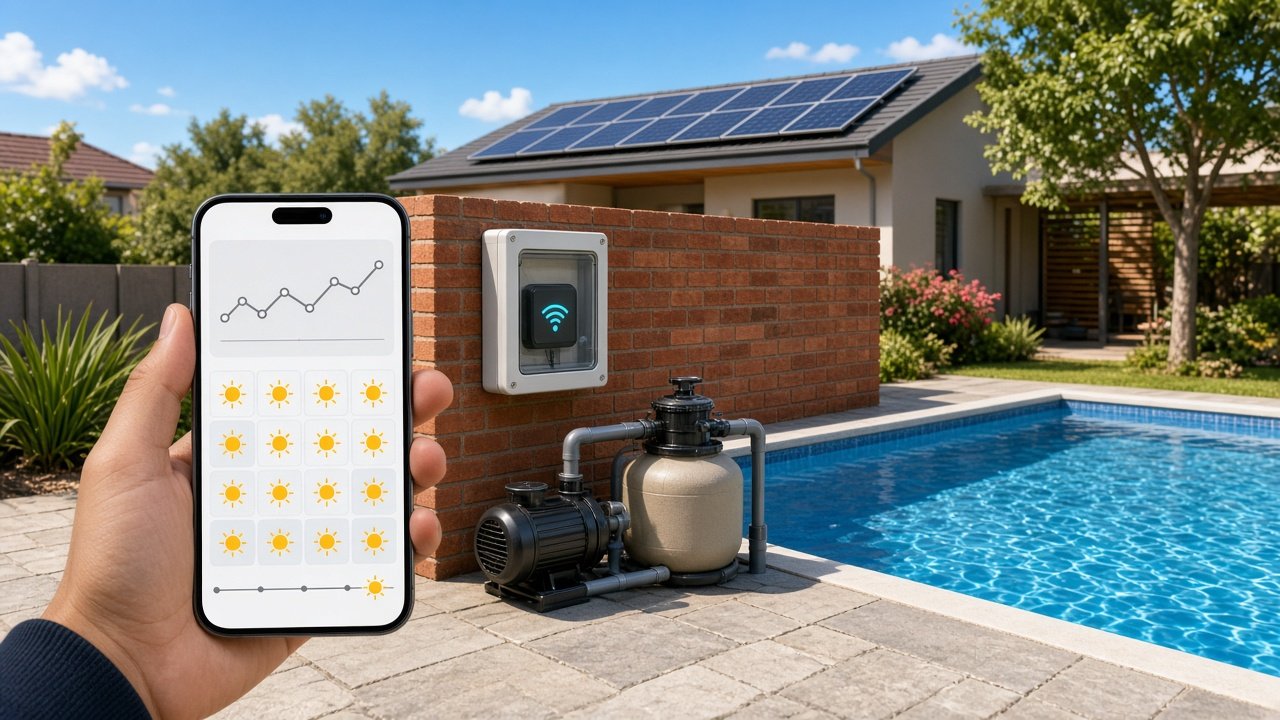
DIY: Run Your Pool Pump and Pool Light on a Smart Schedule with Home Assistant (Shelly or Sonoff)
Put your pool pump on a smart relay, either a Shelly or a two-channel Sonoff Dual R3 that also handles the pool light, give it a weekly schedule in Home Assistant, and run it in the sunniest hours so it uses your solar instead of the grid, with power monitoring and an alert if it stops.
In a lot of South African homes the pool pump is one of the biggest everyday electricity users, and it usually runs off a mechanical timer in the pump box. Those timers drift after every power cut, have to be reset by hand after load shedding, and know nothing about your solar panels. The result is a pump that runs at the wrong time, or not at all after an outage.
This DIY swaps that timer for a smart relay controlled by Home Assistant. The main steps use a Shelly, and further down there is a section on the Sonoff Dual R3, a two-channel relay that can run the pump and the pool light from one box. Either way you get a weekly schedule you can change from your phone, a pump that can run in the sunniest hours when your panels are producing, live power readings, and a warning if the pump is switched on but not actually running. With the Shelly everything works over your local network, with no cloud needed.
What you need
- A Shelly relay with power metering, such as the Shelly 1PM Gen3 (product docs: https://kb.shelly.cloud/knowledge-base/shelly-1pm-gen3). Shelly lists it at a maximum switching current of 16 A at 240 V, with built-in voltage and current measurement.
- Or, if you also want to switch the pool light: a Sonoff Dual R3, a two-channel relay with power metering on each channel. See the Sonoff section below before you buy, because its ratings are lower than the Shelly's.
- A weatherproof enclosure near the pump, or space in your existing pump DB or timer box.
- Home Assistant with the Shelly integration, which talks to the device directly on your network. For the Sonoff, you need the SonoffLAN custom integration or ESPHome, covered below.
- The Home Assistant Companion app on your phone for alerts.
- A registered electrician for the mains wiring.
Safety first: this one is mains wiring
A pool pump runs on 230 V next to water, so the relay installation is a job for a registered electrician, not a weekend YouTube project. Have them check your pump's nameplate current against the relay's rating. A pump is a motor, which pulls a much higher current for a moment when it starts, so ask them whether the Shelly should switch the pump directly or drive a contactor rated for the motor. Shelly's spec sheet also asks for a B or C curve breaker of no more than 16 A in front of the device. Once the wiring is signed off, everything below is software you can safely do yourself.
Step 1: Get the Shelly onto your Wi-Fi
Once it is installed, the Shelly starts its own Wi-Fi hotspot. Connect to it, open its built-in web page, and join it to your home Wi-Fi. Give it a clear device name such as Pool pump, because Home Assistant uses that name for its entities. A DHCP reservation on your router keeps its IP address from changing. Update the firmware while you are there.
Also, in the relay's settings, set what it does after power is restored to off. That way, when power comes back after load shedding, the pump waits for Home Assistant to decide whether it should be running, instead of jumping straight on.
Step 2: Add it to Home Assistant
Go to Settings, then Devices & services. The Shelly usually shows up as discovered; if not, choose Add Integration, pick Shelly and enter its IP address. You should get a switch entity (this post assumes switch.pool_pump) and a power sensor (sensor.pool_pump_power). Your entity names may differ, so check them under the device page and swap them into the examples.
Step 3: Build the schedule with a Schedule helper
Home Assistant's Schedule helper gives you a weekly calendar where you drag time blocks for each day. The helper is on during a block and off outside it. Create it under Settings, Devices & services, Helpers, Create helper, Schedule, and name it Pool pump so it becomes schedule.pool_pump.
How many hours your pump needs depends on your pool volume, the pump and the season, so ask your pool shop or check the pump manual rather than copying someone else's number. If you have solar, put the blocks in the middle of the day when your panels produce the most. Two limits from the docs: blocks on the same day cannot overlap, and a block cannot cross midnight.
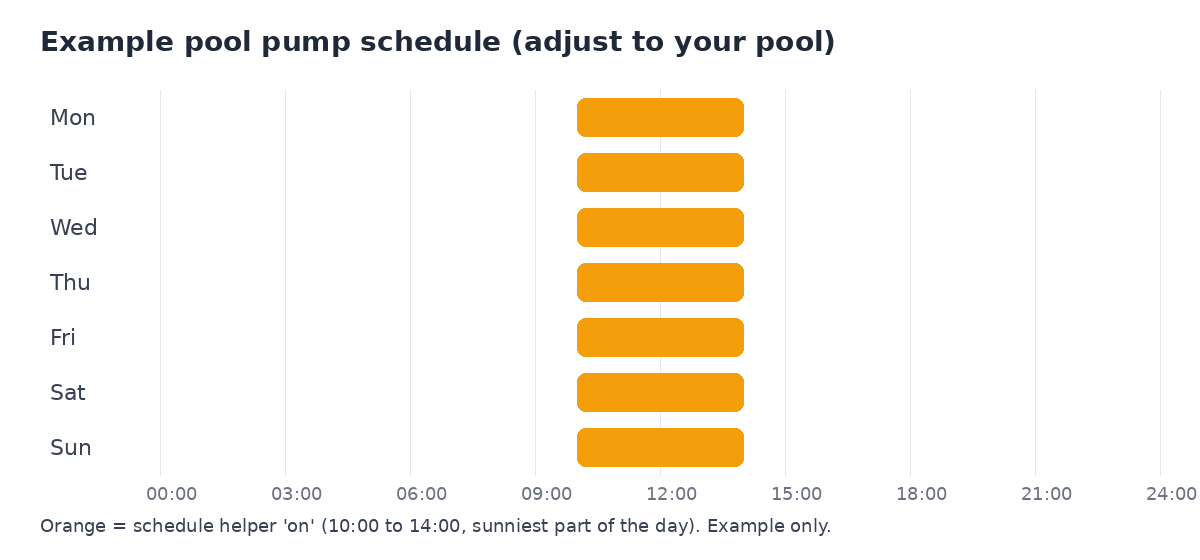
Example only: one block from 10:00 to 14:00 every day. Set your own hours.
Step 4: Make the pump follow the schedule
This automation turns the relay on when the schedule turns on, and off when it turns off. Paste it into a new automation in YAML mode, or paste it into the visual editor, which converts YAML for you:
alias: "Pool pump follows schedule"
triggers:
- trigger: state
entity_id: schedule.pool_pump
actions:
- if:
- condition: state
entity_id: schedule.pool_pump
state: "on"
then:
- action: switch.turn_on
target:
entity_id: switch.pool_pump
else:
- action: switch.turn_off
target:
entity_id: switch.pool_pump
Because it reacts to the schedule's state, the pump also follows any changes you drag into the schedule, without you editing the automation.
Step 5 (optional): Only run when the battery is healthy
If you followed our SolarAssistant inverter guide (https://meshnest.co.za/blog/diy-solarassistant-inverter-battery-home-assistant), you already have a battery state-of-charge sensor in Home Assistant. You can add a condition so the pump only starts when the battery is above a level you choose, which keeps it from draining the battery you need for the next outage. Add this under the then branch as a condition before the turn-on action, using your own sensor name (80% is just an example):
conditions:
- condition: numeric_state
entity_id: sensor.battery_state_of_charge
above: 80
Keep it simple at first. Get the plain schedule working for a week before you add solar conditions.
Step 6: Get an alert if the pump is not really running
The power sensor tells you more than the switch does. If the relay is on but the pump draws almost nothing, a breaker may have tripped or the pump may have a fault. This automation sends a phone notification when that lasts five minutes. Check your pump's normal running power in the Shelly's readings first and pick a threshold well below it; 20 W here is only an example:
alias: "Pool pump not drawing power"
triggers:
- trigger: numeric_state
entity_id: sensor.pool_pump_power
below: 20
for: "00:05:00"
conditions:
- condition: state
entity_id: switch.pool_pump
state: "on"
actions:
- action: notify.mobile_app_your_phone
data:
title: "Pool pump check"
message: "The pump relay is on but the pump is barely drawing power. Check the breaker, the pump and the basket."
Replace notify.mobile_app_your_phone with the notify action for your own phone, as described in the Companion app docs.
Step 7: Watch the energy use
Because the relay measures the power going to the pump, you can add its energy reading to the Home Assistant Energy dashboard as an individual device. After a week or two you will see what the pump really uses each day, and whether moving it into the solar window made a difference to what you pull from the grid.
Alternative: Sonoff Dual R3 for the pump and the pool light
If your pump box also feeds the pool light, a two-channel relay saves you a second device. The Sonoff Dual R3 has two independent channels, so you can put the pump on channel 1 and the pool light on channel 2, and control both from the same Home Assistant setup. There is a cheaper Dual R3 Lite, which has the same two channels but no power metering, so make sure you know which one you are buying.
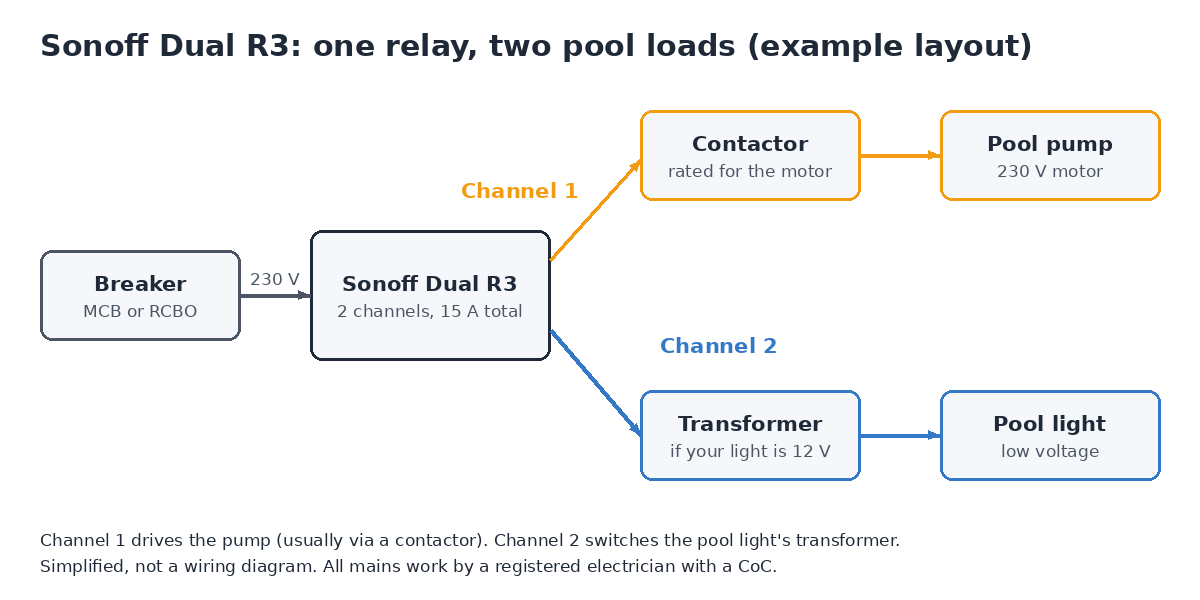
Simplified layout only, not a wiring diagram.
Check the ratings with your electrician first
Sonoff's spec sheet gives a resistive load of 10 A per channel and 15 A for the whole device, and asks for a 15 A MCB or RCBO in front of it. Those are resistive ratings. For motors, Sonoff lists only 10 to 240 W at 1 A, which is meant for curtain and blind motors and is far below a typical pool pump. So in practice, ask your electrician to let channel 1 switch the coil of a contactor rated for your pump, rather than the pump itself. A pump is an inductive motor load with a big start-up current, and that is exactly what a contactor is built for.
Pool lights are often low voltage, fed by a transformer, so channel 2 would normally switch the 230 V side of the transformer. Your electrician will check that the transformer and the light are happy being switched this way. Sonoff also designed the Dual R3 for indoor wall boxes and DIN rails and lists a working temperature of -10 to 40 °C, so it needs a proper weatherproof enclosure out of the direct sun. The same rule applies as for the Shelly: all mains work is done by a registered electrician, who issues a CoC.
Getting it into Home Assistant
You have two routes:
- Keep the stock firmware and use SonoffLAN. Set the device up in the eWeLink app, then install the SonoffLAN custom integration through HACS and log in with your eWeLink account. It can talk to the device over your LAN, over the cloud, or in auto mode, which uses the local connection when it can and falls back to the cloud. The author recommends auto mode. For the Dual R3 you get two switches, a power-on state setting for each channel, and per-channel current, voltage and power. Energy history comes from the cloud about once an hour.
- Flash ESPHome or Tasmota. The device has an ESP32 inside, and both projects document it. This keeps everything local, but you have to open it and flash it over serial. Never do that while it is connected to mains, because the board's ground is tied to live. There are two hardware versions with different metering chips, so check which one you have before you copy a config. If you are not comfortable with any of that, stick with SonoffLAN.
Power-on state after load shedding
Just like the Shelly, set both channels to stay off when power comes back. In the eWeLink app this is the Power-on State setting, which offers On, Off or Last State for each channel, and SonoffLAN shows it as a select entity too. On ESPHome, set restore_mode: ALWAYS_OFF on both relay switches. Home Assistant then decides whether the pump should be running.
Adapting Steps 3 to 7
The schedule, the battery rule and the energy tracking all work the same way. Just point the automations at the channel 1 switch instead of switch.pool_pump. Your entity names will be different, so check them on the device page. A few things to watch:
- The "not drawing power" alert needs real pump readings. It only works on the full Dual R3, not the Lite. And if channel 1 drives a contactor, the Sonoff measures the contactor coil, not the pump, so the alert will not tell you much. In that case, skip it or ask your electrician about a separate energy meter on the pump circuit.
- Energy dashboard. The same caveat applies: only add the channel 1 energy if it is really measuring the pump.
- Leave the eWeLink schedules empty. Let Home Assistant own the schedule so two systems are not switching the pump.
Pool light automation
Here is a simple example that turns the pool light on at sunset and off at 22:00. switch.pool_light is a placeholder, so replace it with your channel 2 entity:
alias: "Pool light on at sunset, off at 22:00"
triggers:
- trigger: sun
event: sunset
id: "on"
- trigger: time
at: "22:00:00"
id: "off"
actions:
- action: switch.turn_{{ trigger.id }}
target:
entity_id: switch.pool_light
Want the light only on weekends, or only when you are home? Add a condition, the same way you added the battery condition in Step 5.
Troubleshooting
- Entity goes unavailable. Pump boxes are often far from the router and inside brick or metal. Check the Wi-Fi signal entity (disabled by default under the device) and add an access point closer to the pool if needed.
- Pump did not start after load shedding. That is the off-after-power-restored setting working. The automation only acts when the schedule changes state, so if power returns in the middle of a block, toggle the schedule or add a second trigger on Home Assistant start that re-checks the schedule.
- Relay feels warm or clicks oddly. Switch it off and get your electrician back. Do not keep running a motor on a relay that is struggling.
Sources
- Shelly 1PM Gen3 knowledge base: https://kb.shelly.cloud/knowledge-base/shelly-1pm-gen3
- Home Assistant Shelly integration: https://www.home-assistant.io/integrations/shelly/
- Sonoff Dual R3 docs: https://help.sonoff.tech/docs/dualr3
- Sonoff product page: https://sonoff.tech/products/sonoff-dualr3-dualr3-lite-dual-relay-two-way-power-metering-smart-switch
- SonoffLAN custom integration: https://github.com/AlexxIT/SonoffLAN
- ESPHome Dual R3 page: https://devices.esphome.io/devices/Sonoff-Dual-R3
- Tasmota template for the Dual R3: https://templates.blakadder.com/sonoff_DUALR3.html
- Home Assistant Schedule helper: https://www.home-assistant.io/integrations/schedule/
- Home Assistant Energy dashboard: https://www.home-assistant.io/docs/energy/
- Companion app notifications: https://companion.home-assistant.io/docs/notifications/notifications-basic/